How to Use ChatGPT as Your Personal AI Agent: Complete Setup Guide (2026)
To turn ChatGPT into a personal AI agent, set up four things together: Memory (so it remembers your context), Custom Instructions (so it knows your preferred tone and format), Projects (so related work stays organized), and its built-in tools like Browsing and File Uploads. None of this needs coding — it's all configuration you can do directly inside ChatGPT's settings.
Let's walk through exactly how.
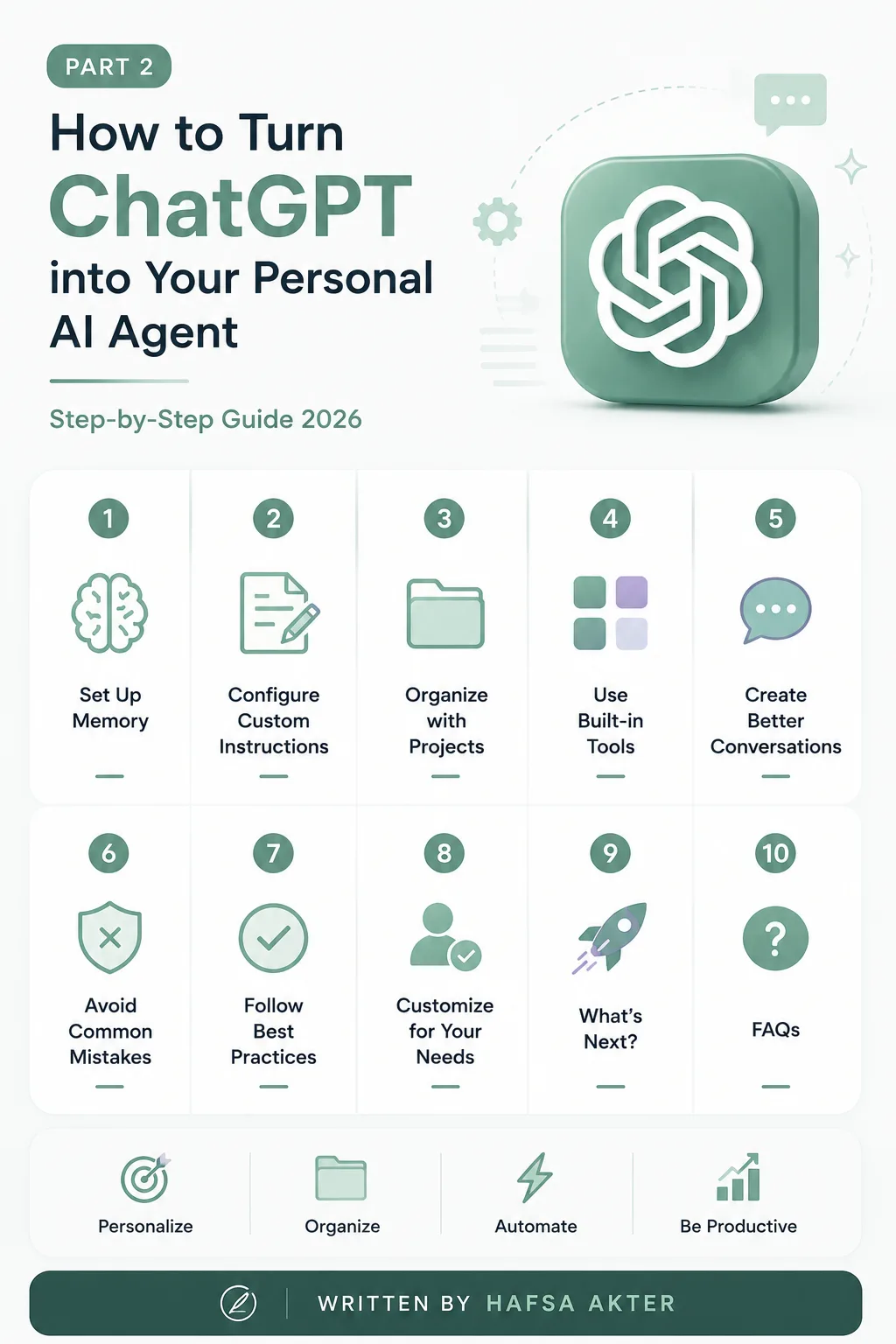
Imagine opening ChatGPT every morning and it already knows your writing style, remembers what projects you're working on, helps organize your tasks, researches topics on its own, summarizes files you hand it, and assists you throughout the day — without you re-explaining who you are every single time.
That's not some future feature. That's just... ChatGPT, set up properly.
And the good news? You don't need any coding skills to make this happen. You just need to configure it the right way. That's exactly what we're doing in this guide.
Why Default ChatGPT Isn't a Personal AI Agent Yet
Here's something worth understanding before we start clicking around in settings.
Default ChatGPT — the version most people use — starts every conversation from scratch. It doesn't know your job, your writing style, your ongoing projects, or your preferences, unless you tell it, every single time.
A personal AI agent, on the other hand, carries context forward. It remembers. It adapts. It doesn't need you to re-explain the basics before it can actually help.
So what's missing between the two? Really, it comes down to setup. ChatGPT already has the pieces — Memory, Custom Instructions, Projects, and its built-in Tools — most people just never turn them on or use them properly.
That's really the whole gap. Let's close it, step by step.
Step 1 — Set Up Memory
Let's start with Memory, because it does the heaviest lifting here.
Memory is exactly what it sounds like — ChatGPT's ability to remember details about you across different conversations, instead of forgetting everything the moment you close the chat. You'll find it under Settings → Personalization → Memory, and you can view, edit, or delete anything it's saved at any time.
So what should you actually save in there?
- Your profession or role
- Your preferred writing style
- Ongoing goals you're working toward
- Active projects you're involved in
- General preferences — tone, format, how detailed you like answers
A quick tip: don't dump everything in at once. Let it build naturally as you use ChatGPT, and check back on it every few weeks. Outdated memory — like a project that ended months ago — can actually make responses worse, not better, so it's worth a quick clean-up now and then.
Step 2 — Configure Custom Instructions
Next up, Custom Instructions.
Where Memory learns about you gradually over time, Custom Instructions let you set your baseline preferences upfront, all at once. Think of it as filling out a quick form that tells ChatGPT how you want it to behave — before you've even asked it anything.
Here's what's worth including:
- Your preferred tone (formal, casual, direct, friendly)
- How you want responses formatted (short and punchy, or detailed and thorough)
- Your language preference
- Who your typical audience is
- Your general writing style
Example Custom Instruction:
"I'm a small business owner. Keep responses practical and to the point. Avoid overly formal language. When writing content for me, keep it conversational, not corporate."
Short, clear, and specific — that's really all it takes.
Step 3 — Organize Your Work with Projects
Now let's talk about Projects, which is probably the single most underused feature in ChatGPT.
Projects let you group related conversations, files, and instructions into their own separate workspace. Instead of one giant, messy chat history where everything blends together, each Project stays self-contained — with its own context that carries across every chat inside it.
A few examples of how you might split things up:
- An SEO project for content and keyword work
- A Business project for planning and strategy
- A Study project if you're taking a course or prepping for exams
- A Coding project for a specific app or script you're building
- A Personal project for everyday life stuff — trip planning, scheduling, whatever
The benefit here is simple: you stop repeating yourself, and ChatGPT stops mixing up context from unrelated things you're working on. Cleaner input, better output.
Step 4 — Use the Built-In Tools
ChatGPT comes with several built-in tools that add real capability once Memory, Instructions, and Projects are already in place. We won't go deep into each one here — that's a whole topic on its own for a later article — but it's worth knowing what's available:
- Browsing — for pulling in current, real-time information from the web
- File Uploads — for reading and working with documents you hand it
- Image Generation — for creating visuals directly in a conversation
- Data Analysis — for working through spreadsheets and numbers
- Voice Mode — for talking to it hands-free, like a real assistant
Together, these tools are what let ChatGPT act rather than just respond.
Step 5 — Learn to Write Better Conversations
Here's a small shift that makes a bigger difference than most people expect.
Instead of asking:
"Write me a blog."
Try something like:
"Write a 1,000-word beginner-friendly blog post targeting small business owners, explaining how AI tools can save them time on daily admin work. Keep the tone conversational, not corporate."
Notice the difference? The second version gives ChatGPT actual context to work with — the length, the audience, the tone, the goal. Vague input gets vague output. Specific input gets something you can actually use.
This one habit alone will improve almost everything you get out of it.
Common Mistakes to Avoid
A few habits quietly undo all the setup work above. Watch out for these:
- ❌ Starting a brand new chat every time, instead of using Projects
- ❌ Giving vague prompts and expecting mind-reading
- ❌ Ignoring Projects and letting everything pile into one messy history
- ❌ Never updating Memory, so it holds outdated information
- ❌ Expecting a perfect answer on the very first try, without any follow-up
Best Practices Worth Building Into Your Routine
To wrap this up, here's what actually makes this stick long-term:
- Always give context — assume it knows nothing unless you've told it
- Keep related work grouped inside Projects
- Review what it gives you — don't just copy-paste blindly
- Use follow-up prompts to refine, rather than starting over
- Save genuinely useful information to Memory as you go
What's Next?
At this point, your ChatGPT is actually configured like a personal AI agent — not just a chatbot you occasionally ask questions.
In the next article, we'll get even more hands-on: 25 Real-Life Ways to Use ChatGPT as Your Personal AI Agent, covering exactly how people are using this setup for work, study, business, and everyday life.
Frequently Asked Questions
How do I turn ChatGPT into a personal AI agent?
Set up Memory, Custom Instructions, and Projects together, and make use of its built-in tools like Browsing and File Uploads. This combination is what shifts it from a simple chatbot into something that feels like a real personal agent.
Should I use Memory?
Yes, generally — it saves you from repeating your context in every new conversation. Just review it occasionally so it doesn't hold onto outdated information.
What should I save in Memory?
Your profession, writing style, ongoing goals, active projects, and general preferences. Keep it relevant and current rather than dumping in everything at once.
Are Projects actually useful, or are they overkill?
For anyone juggling more than one type of work — say, business and personal tasks — Projects are genuinely useful. They keep context from bleeding between unrelated topics.
Do I need ChatGPT Plus to do all this?
Some features, like extended Memory and certain tools, are more fully available on paid plans. But the core setup — Custom Instructions, basic Memory, and Projects — is largely accessible even on the free tier.
Can free users use these features?
Yes, to a meaningful degree. Free users get access to the core setup described here, though some advanced capabilities are reserved for Plus and higher tiers.
💬 Found this useful? Let's connect on [LinkedIn - Hafsa Akter] — I share more breakdowns like this regularly.